
1. Annual account statements
If you haven’t received an annual account statement after approximately a year of being in your property, there may be some missing information on your account that means we have not been able to generate one for you. We’ll be looking into this and will aim to get in contact with you if we believe you can provide us with the relevant information to produce the statement. If you haven’t heard from us, please get in touch.
If you see negative consumption on your consumption graph for any of your utilities, this is likely due to a bill reconciliation of your account after receiving an actual read, correcting the estimations used in their place. Negative consumption occurs when estimated reads are higher than your actual usage, resulting in a correction.
To ensure that we can always bill you based on actual reads, please submit a manual meter read via ‘my insite’ within 3 days of the end of every month.
The consumption noted in your annual account statement might differ significantly to that you may see on your Guru, Secure or KURVE PAYG account if it has been out of communication with our remote systems for a significant amount of time. For the most accurate display of your consumption, please look at the consumption data available on your Guru or Secure hub or the KURVE web-app.
If you’ve made a payment to your account after receiving your bill, this may not have been included in your annual account statement, thus meaning your charges and payments may differ.
At the time that the tariff change was applied, your prepay meter may have been out of communication with our system. If a tariff change hasn’t been applied to your meter, please contact us, as there could be a potential fault with your prepay meter.
2. Credit billing
There are several ways to pay your bill, so you can choose the option that works best for you:
- Direct Debit– variable or payment plan via ‘my insite’. To set-up a Fixed Direct Debit please give us a ring.
- Online via ‘my insite’
- Online bank payments Faster Payments and standing orders
- Cash or bank card in any Post Office or shop displaying the Payzone logo
- Over the phone with an agent (only available for residents in vulnerable situations)
If you choose to set-up a Direct Debit with us, you can choose between the following options:
- A variable Direct Debit will take a payment equalling the bill value each month from your chosen payment card. If you have debt, the outstanding amount will be added to your first payment.
- A payment plan allows you to select a 3, 6, 9 or 12 monthly fixed amount to pay off your debt. A variable amount equalling the value of your monthly bill will be added each month as well.
- A fixed Direct Debit consists of a fixed payment amount determined by you each month to cover your average monthly bill.
If you would like to pay by Direct Debit, please create an account on or log in to your ‘my insite’ account, and select ‘Direct Debit set up’ on the homepage.
If you do not have an online account, you can still set-up a Direct Debit by completing our Direct Debit instruction form. Once completed, you can return the form to us using the webform on our website, via LiveChat or send by post to the following address:
Insite Energy
Studio 4, Stuart House
St John’s Street
Peterborough
PE1 5DD
If you’re a credit billed resident, you can make online payments via the ‘my insite’ web-app. Visit my.insite-energy.co.uk to log-in or register.
From ‘my insite’ you can also view your latest balance, manage your stored payment cards, set-up a Direct Debit, and view your latest bills. Find out more about our customer portal on our dedicated ‘my insite’ webpage.
You can pay your bills by setting up a standing order or using Faster Payments directly from your bank account. Please use the bank details below and ensure that your 8-digit account number is used as the payment reference. This can be found on your bill.
- Bank: Lloyds Bank
- Company Name: Insite Energy Ltd
- Sort Code: 30-84-84
- Account Number: 28037660
- Reference: [Your Insite Energy account number]
Please note, if you do not use your account number as the payment reference, we may not be able to find and allocate your payment.
You can make a cash or card payment in-person at any Post Office or shop displaying the Payzone logo. Remember to present the barcode at the bottom of your bill when paying over the counter. You can access all bills via ‘my insite’.
If you require additional support and would like help making a payment, our Customer Service team are on hand. Please have your payment card to hand, as well as your 8-digit account number*, and call your scheme specific phone number, following the instructions to speak to a member of our team.
Your dedicated scheme phone number can be found by searching for your postcode or building name on our ’Find your home’ page.
Please note our opening hours are Monday–Friday from 8am to 7pm, and 8am to 4pm on Saturdays. We are closed on Sundays and bank holidays.
*Your 8-digit account number can be found on your bill.
Where we obtained meter reads for your home remotely, these will be marked with an ‘A’ on your bill.
If we’ve been unable to obtain a meter read remotely, you may as a result receive an estimated bill. This will be indicated by an ‘E’ marked in the ‘Heat Charges’ section of your bill – see our ‘Understanding your bill’ breakdown for more information. As a result, you may be charged more or less than expected.
If you wish to receive a bill based on your actual consumption, please submit a meter read through ‘my insite’. Where you provide us with a manual read, this will be shown on your bill denoted with a ‘C’.
In the absence of an actual meter read, we may estimate your consumption in the following ways:
- Where we have actual consumption for your home for the same month/period last year, we will use that as a daily average.
- Where this is not available, but we have actual reads from your last billed month/period, these will be used.
- Where no consumption data is available, we will use the industry averages below, depending on the time of year.
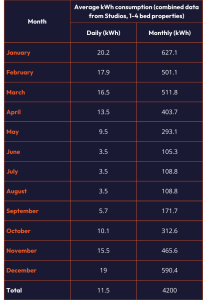
In doing so, we aim for you to receive estimate bills as close to your actual consumption as possible. In any instance that you wish to receive a bill based on actuals, please submit a manual meter read through ‘my insite’. You can find instructions on how to do this in the next FAQ.
If we’re unable to obtain an actual reading from your meter remotely, and you’ve received an estimate bill as a result, we may ask you to provide us with a manual meter reading. To do this, you can submit your reading along with a photo of your heat meter showing the latest read via ‘my insite’.
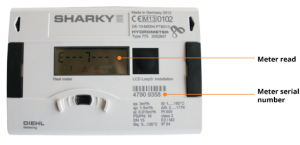
Your heat meter is typically found either inside or near your heat interface unit (HIU), which is normally located within your utility cupboard. Sometimes your energy meter may be located in a communal area, outside your property. Please contact your building owner or landlord if you’re unable to find your meter. Please note, Insite Energy is not responsible for the installation or operation of your heat meter.
 |
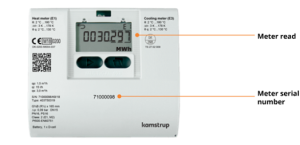 |
Above are some examples of what your heat meter may look like.
If you have a combined heating & hot water and cooling meter, you’ll be able to see your usage for both on the same meter.
If your meter displays your energy consumption in megawatt-hour (MWh), please multiply your meter read by 1000 to convert it into kilowatt-hour (kWh) when submitting your manual meter reading (e.g. 0.123MWh = 123kWh).
Your bill contains information about what you have consumed, what the charges are and how you can make payments.
Download our interactive PDF for a breakdown of the key information displayed on your bill and explanations of each of these terms.
Sometimes retrospective amendments need to be made to what you have been already billed. Back-billing is a way of correcting this by issuing a catch-up bill or account balance amendment for energy that has already been supplied to you but has not been correctly charged.
Back-billing is permitted under the Heat Trust Scheme Rules, and under Ofgem’s Heat Network (Market Framework) (Great Britain) Regulations 2025. However, there are limits on when it can be used. In most cases, back-billing is limited to charges applicable to the previous 12-months. However, this may be extended where a property falls under Section 18 of the Landlord and Tenant Act 1985, or where you, as the resident, are at fault.
For example, a resident may be at fault if they have used the energy supply but have not made any reasonable attempt to set-up an account or make payment, have wilfully avoided payment, or have not co-operated with attempts to access in-property meter equipment or rectify billing issues.
Where the fault lies with your heat supplier, Insite Energy, or another relevant party to relation to accurate billing, setting up an account, resolving metering issues, or acting on information needed to issue bills, back-billing may not be permitted beyond the applicable time limit of 12-months.
More guidance on Ofgem’s back-billing rules can be found on their website. Please be advised that while Ofgem have implemented the above rules for heat networks, full compliance by your heat supplier is not required until 27th January 2027.
Find out more about the current state of heat network regulations in our blog.
3. Pay-as-you-go (PAYG)
There are several ways to top-up your PAYG account, so you can choose the option that works best for you:
- Online via ‘my insite‘
- Balance-based or date-based automatic top-ups via ‘my insite‘
- Cash or bank card in any PayPoint outlet
- Over the phone using our interactive voice response (IVR) service.
- Via SMS
- Over the phone with an agent (only available for residents in vulnerable situations)
To top-up online, please log-in to our customer portal, ‘my insite’.
From ‘my insite’ you can also view your latest balance, manage your stored payment cards, set-up an auto top-up, and view your top-up history. Find out more about our customer portal on our dedicated ‘my insite’ webpage.
To set-up automatic top-ups, you’ll first need to register for an online account on ‘my insite’, our customer portal. You’ll then be able to set-up an auto top-up. There are two types to choose from:
- A balance-based auto top-up will take an amount of your choosing when your balance falls below a certain amount. For example, top-up £20.00 when your balance reaches £10.00.
- A date-based auto top-up will take a fixed amount from your nominated bank account on a specific date. For example, top-up £20.00 on the 1st of each month. If choosing this method, please be mindful that you may still be cut off if you consume more than your scheduled payment amount.
You can top-up in-person at any location that displays the PayPoint logo. You can search for a PayPoint location using their online store locator or by clicking on ‘View barcode’ under ‘My account’ on ‘my insite’.
When visiting a PayPoint location, remember to take your 19-digit payment number barcode, which can be found under ‘My account’ within ‘my insite’. At the counter, present your barcode to the shop assistant and pay using cash, credit or debit card.
Our telephone interactive voice response (IVR) service is available to you 24/7/365.
- Have your bank card to hand, as well as your 19-digit payment number.
- Call your scheme-specific phone number.
- Press “1” when prompted.
- Follow the instructions given over the IVR system.
To make payments via SMS text messages, you’ll need a ‘my insite’ account, with your mobile number registered and a payment card stored.
Once done, text 07378 961941 using the following format:
“PAY [19-digit payment number] [payment amount] [CVV]”
e.g. To top-up £15.26, text: PAY 9826172737900450089 15.26 123
Please note, sending SMS text messages through this service are subject to standard mobile network text message rates.
Your 19-digit PAN can be found in your welcome email, on ‘my insite’, and on your PayPoint and email receipts.
If you require additional support and would like help making a top-up, our customer service team are here to help. Please have your payment card to hand, as well as your 19-digit payment account number (PAN)*, and call your scheme-specific phone number, following the instructions to speak to a member of our team.
Your dedicated scheme phone number can be found by searching for your postcode or building name in our ’Find your home’ page.
Please note our opening hours are Monday–Friday from 8am to 7pm, and 8am to 4pm on Saturdays. We are closed on Sundays and bank holidays.
*Your 19-digit PAN can be found in your welcome email, on ‘my insite’, and on your PayPoint and email receipts.
If you’re struggling to log into your ‘my insite’ account or want to make a quick top-up to your Guru or Secure PAYG Hub, you can click ‘Guest payment’ on the ‘my insite’ login page. You’ll need your 19-digit payment account number (PAN) and payment card to hand. Your 19-digit PAN can be found in your welcome email, on ‘my insite’, and on your PayPoint and email receipts.
The type of billing available to you on your heat network is determined by your heat supplier, based on what they believe will work best for the network and its residents.
In many instances, pay-as-you-go (PAYG) is selected because it gives residents more visibility and control over their energy account. Instead of waiting for a monthly or quarterly bill after energy has already been used, like a PAYG mobile phone contract, if you’re on PAYG, you’ll need to add credit to your account to gain access to your energy supply.
Advantages of PAYG
- Greater control over your spending: You can monitor your usage in real-time, helping you understand how much energy you’re using and budget accordingly.
- Helps encourage energy saving habits: Being able to monitor your usage more closely can make it easier to identify opportunities to reduce your consumption.
- Modern technology allows for convenient ways to pay: Legacy PAYG meters are a thing of the past. Modern smart PAYG meters are widely used across heat networks and usually offer a range of top-up methods, so you can choose the option that works best for you.
- Extra protection if your balance runs low: To minimise the risk of disconnection from your energy supply, different types of credit may be available to you depending on your circumstances, including Emergency Credit, Friendly-hours Credit, Additional Support Credit and Prepayment Meter Credit.
- Helps keep costs down: PAYG systems can also help reduce the build-up of debt across a heat network. Lower levels of unpaid charges help manage the overall financial stability of the network, reducing pressure on future tariff increases for all residents.
The main disadvantage of PAYG is that you need to actively keep your account in credit. This means remembering to top-up before your balance runs out. If you do not have enough credit and you have already used your emergency credit, your energy supply may be disconnected until you top-up again.
Using ‘my insite’ makes it easier to stay on top of this by allowing you to check your balance and set-up an auto top-up, so your credit is topped up automatically when it runs low, helping you avoid running out of credit.
Alongside emergency credit, depending on the situation there may be other credits available to you as below. Please note, that all of these act like bank overdrafts and will need to be repaid by topping up your account.
- Friendly-hours Credit – an amount of credit provided overnight, at weekends and/or public holidays to you when your PAYG meter credit runs low or out to ensure the continuity of, or a return to your energy supply
- Additional Support Credit – if you are a resident in a vulnerable situation, a fixed amount of additional credit may be provided to you to ensure the continuity of your energy supply and avoid self-disconnection
- Prepayment Meter Credit – following the installation of a PAYG meter (or remote switch to PAYG mode) in your property where you have not provided explicit consent, your heat supplier will provide you with Prepayment Meter Credit or ensure you do not experience an interruption to your energy supply.
If you have recently topped up but it has not appeared on your Guru or Secure PAYG hub, you may need to manually enter the 20-digit payment code (Unique Transaction Reference Number or UTRN) into your PAYG hub. You will find this on your payment receipt (email, paper or SMS). Instructions on how to perform a manual top-up onto your Guru Hub II, Guru Hub I or Secure Pipit 500 can be found below.
If your top-up shows on your PAYG Hub but not on your ‘my insite’ account, please wait up to 24-hours for this to show. If your top-up still hasn’t appeared on your balance and payment history after this time, please contact our helpdesk.
KURVE residents
If you’re a KURVE PAYG resident and received an email receipt following top-up but it still hasn’t appeared on your account after one (1) hour, please get in touch with our helpdesk and we will investigate this for you.
Guru Hub II residents
Instructions on how to complete a manual top-up on your Guru Hub II can be found in this short video at timestamp 1:19.
Secure Pipit 500 residents
1. Enter the ‘Account’ menu, then press ‘Top Up’:

2. Use the numeric keypad to enter the 20-digit top-up code found on your receipt:

Your balance will now be updated.
Guru Hub I residents
1. Press ‘Top Up’ on the Hub:
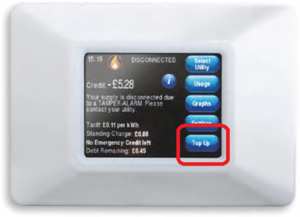
2. Use the numeric keypad to enter the 20-digit top up code found on your receipt:
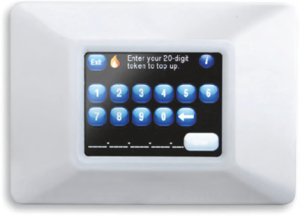
3. Return to the main screen and you will see your balance has been updated.
If you cannot find your top-up code, please contact customer services via our ‘Get in touch’ page.
If your PAYG IHD isn’t working or the screen has gone blank, it may have gone into sleep mode. To check this, please double tap the screen to make the display appear.
If this doesn’t work, please get in touch so we can either diagnose the issue remotely or arrange an engineer to visit if required.
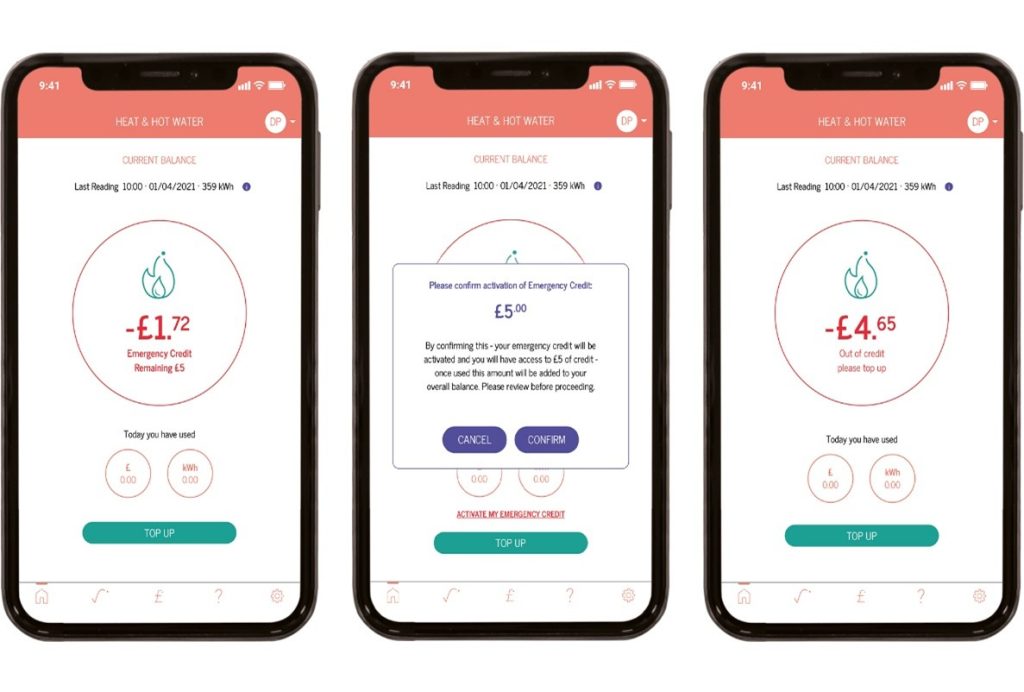
If your balance falls below £0.00, you can utilise your emergency credit. Emergency credit works like a bank overdraft and gives you temporary access to heating & hot water until you can make your next top-up. Any emergency credit you use will be automatically repaid the next time you add credit.
Important: If you use your emergency credit, make sure to top-up before it runs out to avoid being disconnected from your energy supply. Your daily standing charge will continue to deduct from your account even if no energy is being consumed, which means debt can build up if regular top-ups are not made.
How you activate your emergency credit depends on the PAYG system installed in your home.
Guru Hub I & II
If you’re low on credit, an “Activate emergency credit” button will appear on your Hub screen. Press this to activate it and keep your supply running. Your Hub will show when emergency credit is active and how much remains.
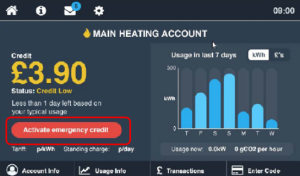
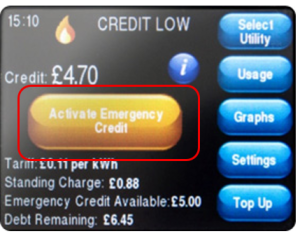
Secure Pipit 500
When your credit runs low, the display will prompt you to top-up. If you cannot top-up straight away, you can activate your emergency credit by pressing the “E-Credit” button shown on the screen. Once activated, your monitor will confirm “E-CREDIT ON” and show how much emergency credit you have remaining. If this runs out, your supply will disconnect and you will need to top-up to restore it.
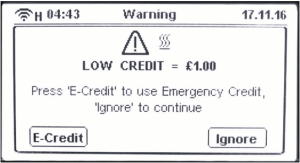
KURVE
When your account reaches the cut-off limit, the KURVE balance screen will show an “Activate my emergency credit” button. Your meter will need to be in communication with our remote metering & billing system for this to work. Tap this to restore temporary access to your energy supply. The balance screen will display the amount of emergency credit you have remaining until you need to top-up. Instructions can also be found in this short how-to video.
If you have any debt on your account, this may be moved to a separate ‘debt balance’ with a debt recovery rate percentage applied, as determined by your heat supplier. For example, if set to 25%, this means that whenever you make a top up (e.g., £10.00), 75% will go onto your account balance (£7.50) and the remaining 25% will go towards paying off your debt balance (£2.50). If you wish to pay off your debt balance in full, please give us a call on your scheme-specific phone number found on our development directory.
The use of a debt balance and recovery rate allows you immediate access to your energy supply, whilst gradually paying off your aged debt as you make payments.
Our selected payment service provider (PSP), PayPoint, do not accept payments made from a select number of countries due to an increased number of cyber-attacks attempted from these areas. This means that you may be unable to top-up your ‘my insite’ or KURVE account when located in any of the following countries:
| Bahamas | Belarus | Bosnia and Herzegovina | Brazil | Cambodia |
| China | Ecuador | Egypt | Estonia | India |
| Iran | Iraq | Japan | Kuwait | Mauritius |
| Mexico | North Korea | Pakistan | Singapore | South Korea |
| Taiwan | Turkey | UAE | Ukraine |
As a result, we recommend topping up your account or setting up an automatic top-up before travelling to any of these countries.
Unfortunately, we can only accept UK registered bank cards, or, if abroad, Visa and Mastercard payment cards.
We also do not accept American Express (AmEx) but accept payments from all other major card providers.
Before contacting our helpdesk, please:
- Check that your balance is now in positive credit.
- Allow one (1) hour for the top-up to be applied to your account.
If you topped up a few hours ago, please get in touch.
Your PAYG meter connects directly to your home’s heating & hot water supply, measuring the exact amount of energy you use. This means you only pay for what you use.
Our PAYG systems include Guru Hub I, Guru Hub II, Secure Pipit 500 and KURVE, which allow you to easily monitor your balance, make top-ups, and view your energy use. Below are some top things you should know about how your PAYG meter works:
- Keeping your heating & hot water on: If your credit runs out, you’ll be disconnected from your heating & hot water supply. To restore your supply, simply top-up your account into positive credit. If you’re struggling to stay on supply or need advice, please see our financial support and guidance for residents help sheet or get in touch with us for help.
- Check your account balance and usage in real time: Your in-home display (IHD) or KURVE web-app will show your current balance, recent top-ups, and daily energy use. This helps you keep track of your account and plan your top-ups accordingly.
- Top-up your account: You can top-up online through your ‘my insite’ or KURVE account, at any PayPoint outlet. We’ve created video guides to help you navigate top-ups via ‘my insite’ (How to use ‘my insite’) and KURVE (How to use KURVE). You can also find step-by-step instructions on how to make top-ups on pages 5–9 of our ‘my insite’ PDF guide and pages 9-12 of our KURVE PDF guide.
- Your balance will change even if you aren’t consuming: Like all utilities, your daily standing charge will continue to deduct from your balance even if you’re not using energy. This means debt can build up if regular top-ups are not made. Make sure to keep on top of your account to ensure you aren’t disconnected.
For more information on your PAYG meter, visit our website and enter your postcode or building name into our development directory to find your welcome brochure.
4. KURVE PAYG
There are several ways to top-up your PAYG account, so you can choose the option that works best for you:
- Online via KURVE
- Balance-based automatic top-ups via KURVE
- Cash or bank card in any PayPoint outlet
- Over the phone using our interactive voice response (IVR) service.
To top-up online, please login to KURVE and select either ‘Top up’ on the homepage, or click on the ‘Payment’ (£) icon in the navigation bar.
From the KURVE web-app, you can also view your latest balance, manage your stored payment cards, set-up an auto top-up, and view your payment history. Find out more about on our dedicated KURVE webpage.
To set-up an auto top-up on KURVE, navigate to ‘Settings’ and click ‘Automatic Top-up set-up’. There you’ll be able to set-up a balance-based auto top-up. If you have any problems setting up an auto top-up, please get in touch.
A balance-based auto top-up will take an amount of your choosing when your balance falls below a certain amount. For example, top-up £20.00 when your balance reaches £10.00. This ensures that your heating & hot water supply remains connected at all times.
You can top-up in-person at any location that displays the PayPoint logo. You can search for a PayPoint location using their online store locator or by clicking on ‘Find nearest PayPoint store’ under ‘Payment Details’ on KURVE.
At the counter, present your 19-digit barcode to the shop assistant and pay using cash, credit or debit card. You can find your barcode under ‘View payment number & barcode’ within KURVE.
Our telephone interactive voice response (IVR) service is available to you 24/7/365. To use it:
- Have your bank card to hand, as well as your 19-digit payment number.
- Call your scheme-specific phone number.
- Press “1” when prompted.
- Follow the instructions given over the IVR system.
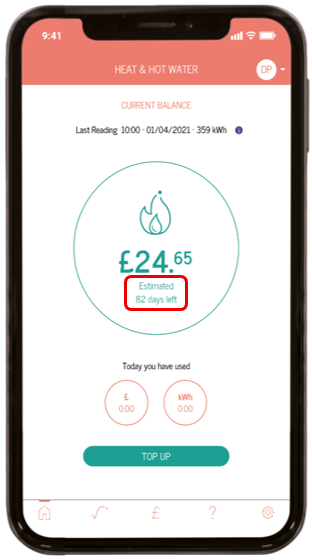
When your account has a positive balance of more than £5, you’ll see ‘Estimated X days left’ shown underneath your balance. This is to give you an idea of how long your credit will last you until you need to top-up again.
This is based on an average of your consumption and daily standing charge over the last 7 days. The accuracy of this estimate will be determined by how much your usage habits change week on week.
Sometimes, you might hear us talk about an issue with your fixed internet connection (FIC) line. A FIC line connects your building’s broadband network to the internet, allowing us to read your meter remotely, and automatically apply top-ups to your KURVE account.
We aim to read your meter every hour. However, if this FIC line goes down, it means the connection between us and your development is temporarily interrupted impacting our ability to talk to your meter and update your account. This means you may not always be able to see up to date consumption data in your KURVE web-app. But this will update once we’re back in communication with your development. In all instances, we’ll always work with your heat supplier to resolve these issues as quickly as possible. Please note that Insite Energy are not responsible for the maintenance of these lines so we may not be able to take any action to ensure these lines are reinstated within a timely manner.
Once we can read your meter again, consumption data should reappear. When it does, we will calculate how much you’ve consumed since your last meter read and average this consumption over the number of days the meter was out of communication. When this happens, you will see an averaged consumption over those affected days like the example graph below.
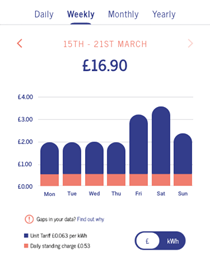
This average will give you a better idea of your daily usage. This means your energy usage may not be accurately portrayed on the days’ communication was lost but they will correctly add up to your total consumption and cost over that time. The total cost of this consumption will be deducted from your account balance in one go.
When you move into your new home, you’ll receive a welcome email with an activation link. This activation link is active for 14 days, so we recommend setting up your account as soon as you receive it. If you fail to activate your account before any opening credit runs out, your energy supply may be disconnected.
If you have any issues activating your account, please get in touch.


Can’t find what you’re looking for?
If you still need help, please give us a call. To find your dedicated scheme phone number, simply search for your development name or postcode in the top search bar.
You can also contact us via one of our webforms for support with your Insite account.