
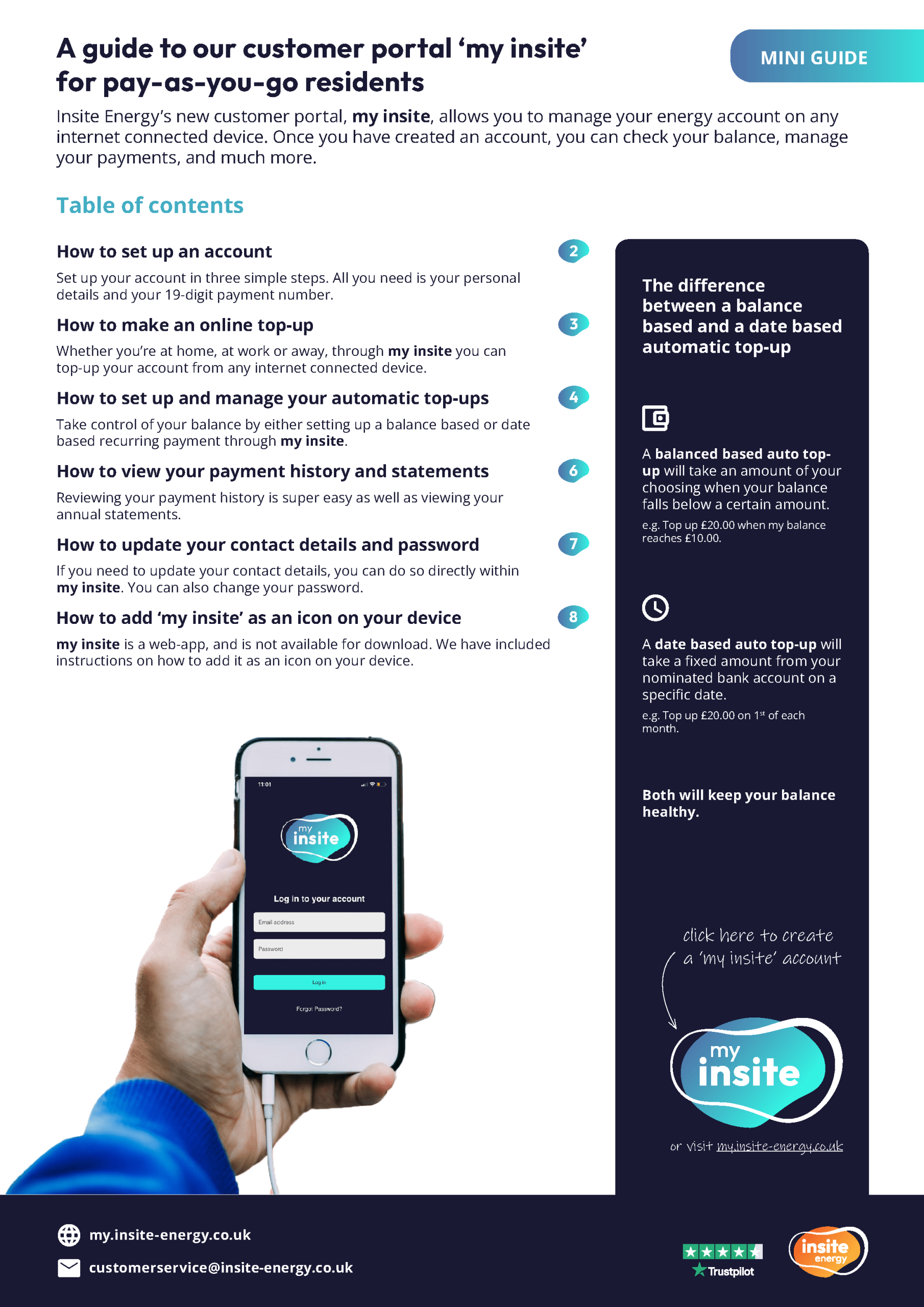
Head to my.insite-energy.co.uk to set-up your online ‘my insite’ account. You’ll need to enter your 19-digit payment account number (PAN) which can be found in your welcome email to set this up. You’ll also need to register with the name and email address registered with us.
From ‘my insite’ you can view your latest account and debt balance, manage your stored bank cards, set-up automatic top-ups, and view your annual account statements.
If you’re having difficulty setting up an online ‘my insite’ account, please get in touch.
For more information on registering, please see our quick how-to guide.
Please note, you can only have one property linked to one email address, so if you’re managing more than one property and wish to have a ‘my insite’ login for each, please use a different email address for each.
Head to my.insite-energy.co.uk to set-up your online ‘my insite’ account. You’ll need to enter your 8-digit account number which can be found in the top right corner of your bill. You‘ll also need to register with the name and email address that is registered with us.
From ‘my insite’ you can view your latest balance, make an online payment, set-up a Direct Debit and view your latest bills and annual statements.
If you’re having difficulty setting up an online ‘my insite’ account, please get in touch.
For more information on registering, please see our quick how-to guide.

Please note, you can only have one property linked to one email address, so if you’re managing more than one property and wish to have a ‘my insite’ login for each, please use a different email address for each.
Depending on whether you have an Apple (IOS) or Android device, you can save KURVE or ‘my insite’ as an app icon on your phone by following the relevant instructions below:
For Apple/IOS devices:
- Type mykurve.com or my.insite-energy.co.uk into Safari and tap the share arrow.
- This will open a menu. Click on the ‘Add to homescreen’ button.
- Follow the instructions on the screen and click ‘Add’.
- An app icon for mykurve.com or my.insite-energy.co.uk should now appear on your phone homescreen.
For Android devices:
- Type mykurve.com or my.insite-energy.co.uk into Google and tap on the three dots in the upper-right corner.
- This will open a menu. Click on the ‘Add to Homescreen’ or ‘Install’ option.
- Follow the instructions and click ‘Add’.
- An app icon for mykurve.com or my.insite-energy.co.uk should now appear on your phone homescreen.
Please note your device or operating system may differ from these instructions. If the above instructions don’t work, we recommend searching for specific advice for your device.
To further protect your personal information, reducing the risk of identity fraud and cyber hacking, two-factor authentication (2FA) is now mandatory for both ‘my insite’ and KURVE.
2FA adds an extra layer of security when you log in. So instead of relying on your email address and password alone, you’ll now also need to complete a second step of authentication to confirm it’s really you. This makes it much harder for someone else to access your account, even if they know your password.
This additional cyber security mechanism supports the Cyber Essentials security requirements set out by the UK’s National Cyber Security Centre (NCSC), which require multi-factor authentication (MFA) when accessing cloud services. Cyber Essentials is a government-backed scheme designed to protect against the most common cyber attacks. It remains one of the simplest yet most effective frameworks for building cyber resilience. You can learn more about these changes here.
If you need help setting up 2FA on either ‘my insite’ or KURVE, step-by-step guidance is available on YouTube:
How to set-up 2FA on ‘my insite’
If you have any issues setting up or using 2FA on your account, please get in touch with our team.


Can’t find what you’re looking for?
If you still need help, please give us a call. To find your dedicated scheme phone number, simply search for your development name or postcode in the top search bar.
You can also contact us via one of our webforms for support with your Insite account.